WooCommerce
Klaviyo back in stock: setup for a WooCommerce store
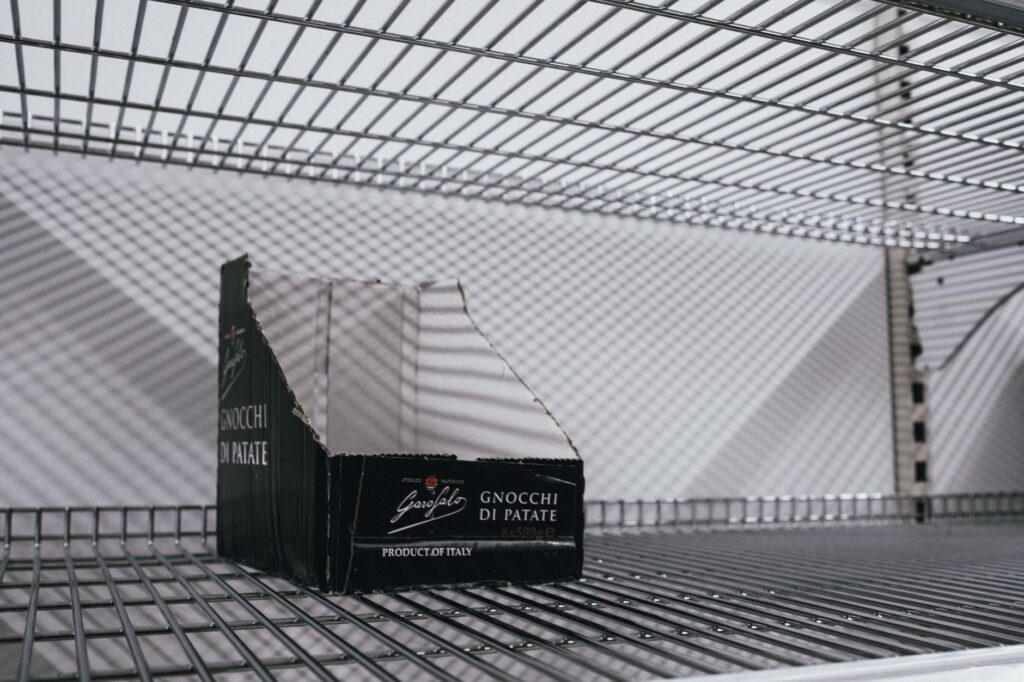
Klaviyo back in stock for WooCommerce has two parts. A form on the out-of-stock product page collects email addresses, and a Klaviyo flow sends an email when the item is back in stock. A customer who finds a product sold out doesn’t have to check the page every few days or look for it somewhere else. Below you’ll find the store and Klaviyo setup step by step, settings for small restocks, a short sample email and a list of mistakes that stop notifications from going out.
Table of Contents
How does Klaviyo back in stock work with a WooCommerce store?
Klaviyo needs two things: a customer signup for a specific product and a flow that waits for that signup. According to Klaviyo’s guide to the back in stock flow, the flow is triggered by the „Subscribed to Back in Stock” event, and the customer waits in the „Back in stock delay” step until their product is back.
Klaviyo’s ready-made form is available for Shopify and BigCommerce. WooCommerce isn’t on that list, so signups have to reach Klaviyo through the product catalog and the API. The Klaviyo restock notifier for Woo plugin handles this part. It adds a form to the page of a product that is out of stock, and anyone who fills it in is added to Klaviyo as a notification subscriber.
Step-by-step setup: a running shoe store example
Take a sports shoe store where popular sizes sell out a few days after each delivery. The owner wants everyone who finds a size sold out to be able to leave an email address and get a single message when it’s back.
On the WooCommerce side
- In Plugins, choose Add New, upload the plugin .zip file, then install and activate it.
- In the „WS Integration Klaviyo - Settings” menu, in the „Klaviyo” section, enter the public and private API keys from your Klaviyo account.
- In the „Form” section, enter the texts customers will see next to an out-of-stock product: an invitation to sign up and what exactly they’re signing up for.
- In the „Products” section, generate the product feed. The plugin won’t work without this step.
On the Klaviyo side
- Connect the product feed as a custom catalog so Klaviyo knows your products and their stock levels.
- In the Flows tab, choose Create flow and search for the „back in stock” template, or build a flow from scratch with the „Subscribed to Back in Stock” trigger and no extra filters.
- Right after the trigger, add the „Back in stock delay” step. Don’t add regular time delays, because this step already waits for the item to come back.
- Add one email and turn off Smart Sending for it so every subscriber gets it.
- Switch the message to Live. Messages left in draft are not sent.
- Run a test: set a test product as out of stock, sign up with your own address, restore the stock and check your inbox.
What to set when only a few items come back?
Set a minimum stock level and batch sending so you don’t let down customers who would miss out on the item. Klaviyo has two settings shared by all back in stock flows:
- Restock minimum, which is how many items have to come back before the first message goes out,
- Notification quantity, which means notifying everyone at once or in batches: how many people to email per item and how long to wait before the next batch.
In the shoe store, 6 pairs of one size came back and 40 people are waiting for a notification (example numbers). With 3 people per item, the first batch is 18 emails. If the shoes are still in stock after the waiting time, Klaviyo sends the next batch. By default, everyone gets the message at once.
Signups also tell you how much to order next time. We explained how to turn them into stock decisions in our post on waitlists and product demand.
Back in stock email content: a short template
The email should remind customers what they signed up for and lead straight to the purchase. An example for the shoe store:
- Subject: „Back in stock: [model name] in size [size]”,
- First sentence: „You asked us to let you know about this model. It’s available again.”,
- Body: photo, name, price and one „View product” button,
- Honest stock information: „the delivery was small” only when it’s true.
You’ll find more on what works in the content and when to send the message in our guide to product availability notifications.
What not to do
- Don’t leave the flow or the message in draft after testing.
- Don’t email everyone when only two items came back. A smaller batch is better than dozens of disappointed people.
- Don’t treat a notification signup as newsletter consent. If you want to send more, ask for it separately in the form text.
- Don’t collect signups for products that won’t come back. It’s better to remove them from your offer or point to a replacement.
- Don’t forget the product feed after bigger catalog changes: generate it again in the plugin’s „Products” section.
If products in your store regularly sell out and customers have no way to leave their address, Klaviyo back in stock turns those visits into a queue of ready buyers. The form and the WooCommerce to Klaviyo connection come with the Klaviyo plugin for Woo for availability notifications.
Frequently asked questions
Why wasn’t the email sent even though the product is back?
Most often the flow is still in draft, the restock minimum in the settings is higher than the number of items, or Klaviyo doesn’t have the current stock level from the product feed. Check these three things in that order.
Where can I see how many people are waiting for a product?
In Klaviyo, in the back in stock report opened from the „Back in stock delay” step. The report shows recent activity, and you can export the list of people in the queue to a CSV file.
Does the form appear on every product?
No. The plugin adds it only to the page of a product that is currently out of stock. A product in stock has the usual buy button, with no form.